PDF troubleshooting
PDF to Markdown: Fix Missing Text and Messy Formatting
By MDFormats · 7 min read · Published
A PDF to Markdown conversion can leave you with missing words, mixed paragraphs, or a table that looks like plain text. Start with one simple check: copy a sentence from the PDF and paste it somewhere else. What you get will help you choose the next step.
PDF to Markdown turns text from a PDF into a .md file you can edit. It accepts files up to 10 MB and 50 pages. Keep the original PDF open so you can check the result as you go.
On this page
First, try copying a sentence from your PDF
Open the PDF, select a sentence, and paste it into a text editor, such as Notepad or TextEdit. Can you read the words you pasted?
Try a sentence near the start, middle, and end. Some PDFs contain normal text on one page and a photo of text on the next. Checking only the cover can miss this.
| What you see | What to try |
|---|---|
| No words can be copied | Ask for the original Word file, or use text-recognition software first. |
| Some pages copy and others do not | Check the pages that are missing text separately. |
| Words appear, but letters or numbers are wrong | Compare them with the PDF before correcting them. |
| The words are right, but paragraphs or tables are mixed | Use the steps below to put them back in order. |
A scan or photo may contain pictures of words rather than text the tool can read. Text recognition, often called OCR, turns those pictures into editable words. MDFormats does not include this feature. You would need a separate OCR tool, then check the words it recognized.
If the file will not open at all, check its size and page count. A PDF that needs a password or cannot open properly in your PDF reader may also need a different copy.
Convert PDF to Markdown in four steps
- Choose Upload PDF and select your file. Wait for the result or an error message.
- On a phone, choose Markdown only to see the text box. Select Download Markdown once before editing, so you have a copy of the starting result.
- Make corrections in Editable Markdown. Keep the PDF beside it and compare each section. The preview shows your converted text, not the original PDF page.
- Choose Download Markdown again to save your changes, or Copy Markdown to paste them elsewhere. Open the saved file in the Markdown Viewer and check that it contains what you expect.
Downloads are named pdf-to-markdown.md. You can rename the first file to something like report-original.md and the edited file to report-edited.md on your computer. This makes them easier to tell apart. Download your work before leaving the page.
Try the example and check its table
You can try the three-page example above before using your own document:
- Download source PDF gives you the original example.
- Download raw extraction gives you the text exactly as the tool returned it, before any changes.
- Download sample Markdown gives you a corrected version of all three pages.
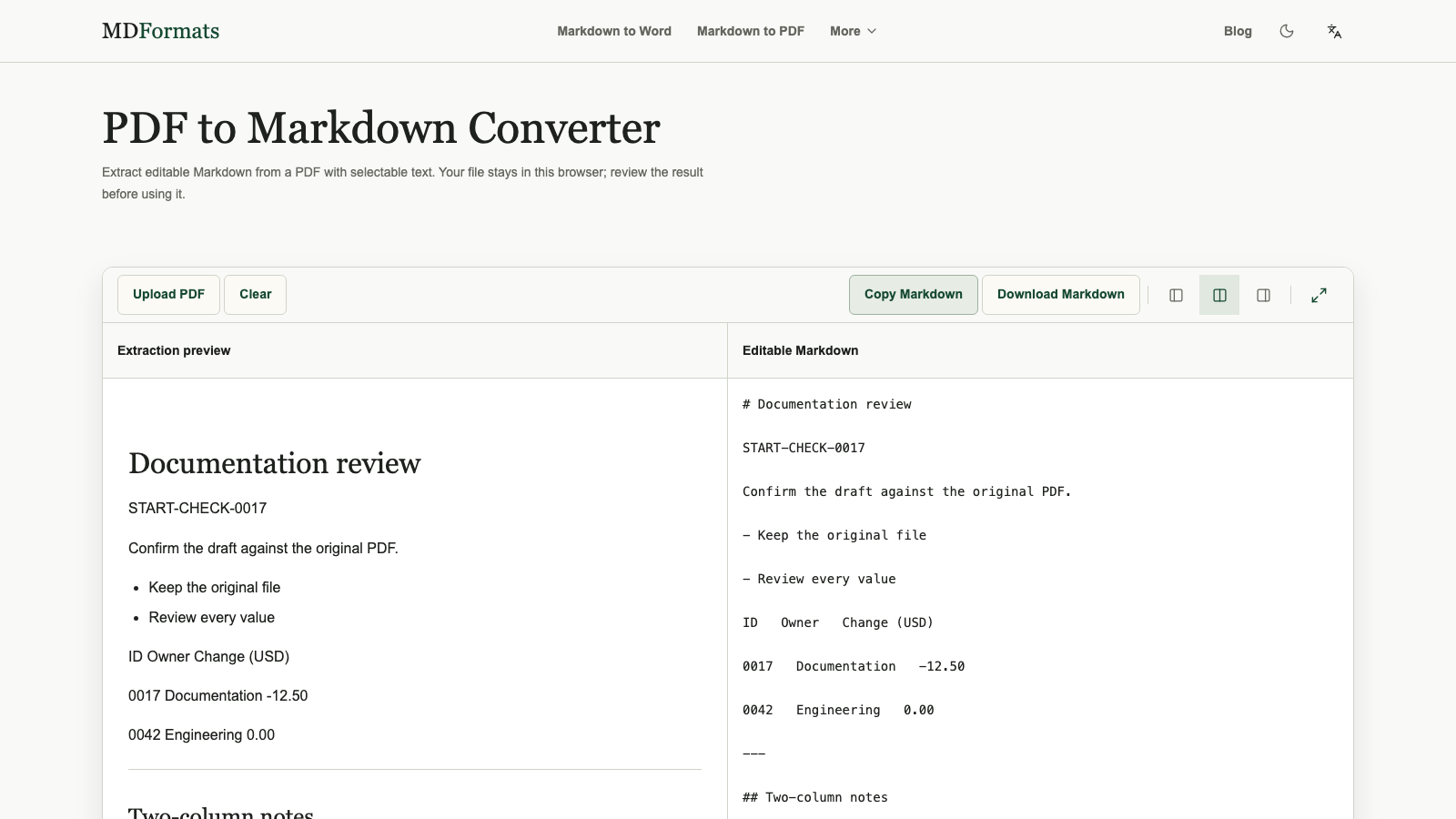
The example has a table on page 1, two columns of notes on page 2, and a short checklist on page 3. Labels beginning with START, MIDDLE, and END help you spot a missing page.
The table's words and numbers come out as separate lines of text. To turn them back into a table, check which value belongs in each row and column. The corrected table looks like this in Markdown:
| ID   | Owner         | Change (USD) |
| ---- | ------------- | -----------: |
| 0017 | Documentation |       -12.50 |
| 0042 | Engineering   |         0.00 |
You do not need to memorize these symbols. Copy the example if it helps, and replace the values while checking your PDF. Keep 0017 as 0017, not 17. Keep the minus sign in -12.50, and check that the amount is still in USD. Leave a cell empty if the PDF leaves it empty.
For a large table, check one row at a time. If you have the original Word document, try Word to Markdown instead of rebuilding everything from the PDF.
Put mixed paragraphs back in the right order
A page with two columns may turn into text that jumps between the left and right sides. Read one column in the PDF at a time to work out where each sentence belongs.
On page 2 of the example, Background is on the left and Decision is on the right. The tool returns these lines:
Background   Decision

Review the draft.   Approve the outline.

Keep the source PDF.   Assign an owner.
The Background paragraph should say: “Review the draft. Keep the source PDF.” The Decision paragraph should say: “Approve the outline. Assign an owner.” Put each paragraph under its own heading, as shown in the corrected download.
For a longer document, you can copy the text into the Markdown Editor to continue editing. You need to copy and paste it yourself; opening that link does not move your text automatically.
Check that no pages or important lines are missing
A message saying all pages were processed does not mean every page's words were copied. A page that contains only a picture may leave nothing but a title such as Page 2.
Compare the beginning, middle, and end of the result with your PDF. Also check any page with a table, picture, or a gap where you expected text.
Look at the top and bottom of the pages too. Repeated titles or footers may be left out. If you need a report name, date, or reference number, copy it back from the PDF.
Some ordinary lines may appear as headings. If a sentence looks like a large title, check the PDF. You can remove the # marks at the start of that line in the editor to make it normal text again.
If the tool reports no text but you can copy words from your PDF reader, keep those words. For a short document, copying them yourself may be easier than trying the same conversion again.
Check numbers, pictures, and anything that looks wrong
Before saving, give names, dates, amounts, and reference numbers a second look. A missing minus sign or a changed digit can matter more than an untidy paragraph.
If you cannot find a word, try searching for a shorter part of it. The word may have been split across lines or have an extra space. Join it only after checking the PDF. Keep hyphens that belong in names or reference numbers.
For Chinese or Japanese text, check unexpected spaces before deleting them. English names and numbers within the same paragraph may still need spaces.
Pictures, formulas, and clickable links need separate checks. The tool does not save pictures as part of the Markdown file, and a link's visible words may remain without the address behind them. Keep the PDF for anything the new file does not include. If you need to reuse computer code, compare its spacing and line breaks with the original before using it.
Frequently asked questions
Why did my PDF give a blank result?
Its pages may contain pictures of text. This tool cannot read words from pictures. Try the copy-and-paste check above, ask for the original Word file, or use a separate text-recognition tool.
Does a completed conversion mean nothing is missing?
No. Check the actual text, especially on pages with pictures or tables. A page title on its own does not mean the words from that page were copied.
Why does my table look like plain text?
The tool can copy the words without keeping them in separate cells. Use the PDF to put each value back in the right row and column, or start with the original Word document if you have it.
Will this change my original PDF?
No. You download a separate Markdown file. Keep the PDF so you can check your edits against it.
Open the saved file before sharing it
For PDF to Markdown problems, start by checking whether you can copy the words. Then fix the paragraphs and tables with the PDF beside you. Save the result, open it again, and check that no important text or values are missing.