Word workflows
Markdown Tables to Word: Export, Check, and Fix the Layout
By MDFormats · 7 min read · Published
To move Markdown tables to Word, export the source as DOCX and check the cells in the saved file before adjusting the layout. A table can fit neatly in a browser and still need different column widths, alignment or page breaks in Word.
This guide works through a small review table, then separates source problems from document layout problems. Use the sample first, or apply the checks directly to your own table.
On this page
Prepare a Markdown table you can check cell by cell
Start with a few representative rows. This fictitious release checklist includes identifiers with leading zeros, an inline command, bold text and a link:
# Release review

| Check ID | Review item | Outcome |
| --- | --- | --- |
| 0017 | Run `npm run build` | Pending |
| 0042 | Review **installation** steps | Needs review |
| 0090 | Open [example reference](https://example.com/) | Confirm URL |
There are three columns and three data rows. Including the header, the exported table should have four rows and twelve cells. The link uses a reserved example address; replace it with your own reference when adapting the sample.
Keep one source row per line. The line of hyphens below the headings identifies the table; spaces added to line up the pipes are for source readability. They do not assign physical column widths. GitHub's table-writing guide explains this syntax and the inline formatting it supports.
Export the Markdown table to an editable Word document
- Open Markdown to Word and replace the editor's contents with Example 1 above. Its copy button omits the enclosing display fence.
- Check the preview: three columns, three data rows and a separate heading. On a phone, use the right-panel view button (Word only) to open the preview. If you see literal pipes instead, fix the source before exporting.
- Select Export DOCX and save
markdown.docx. - Open that file in Word or a compatible editor. Click inside a body cell and change a value to check that you can edit the table.
The example panel also offers Markdown and DOCX downloads for Example 1. Its DOCX was generated with the MDFormats browser tool. The image below shows the browser workspace, not a screenshot of Microsoft Word.
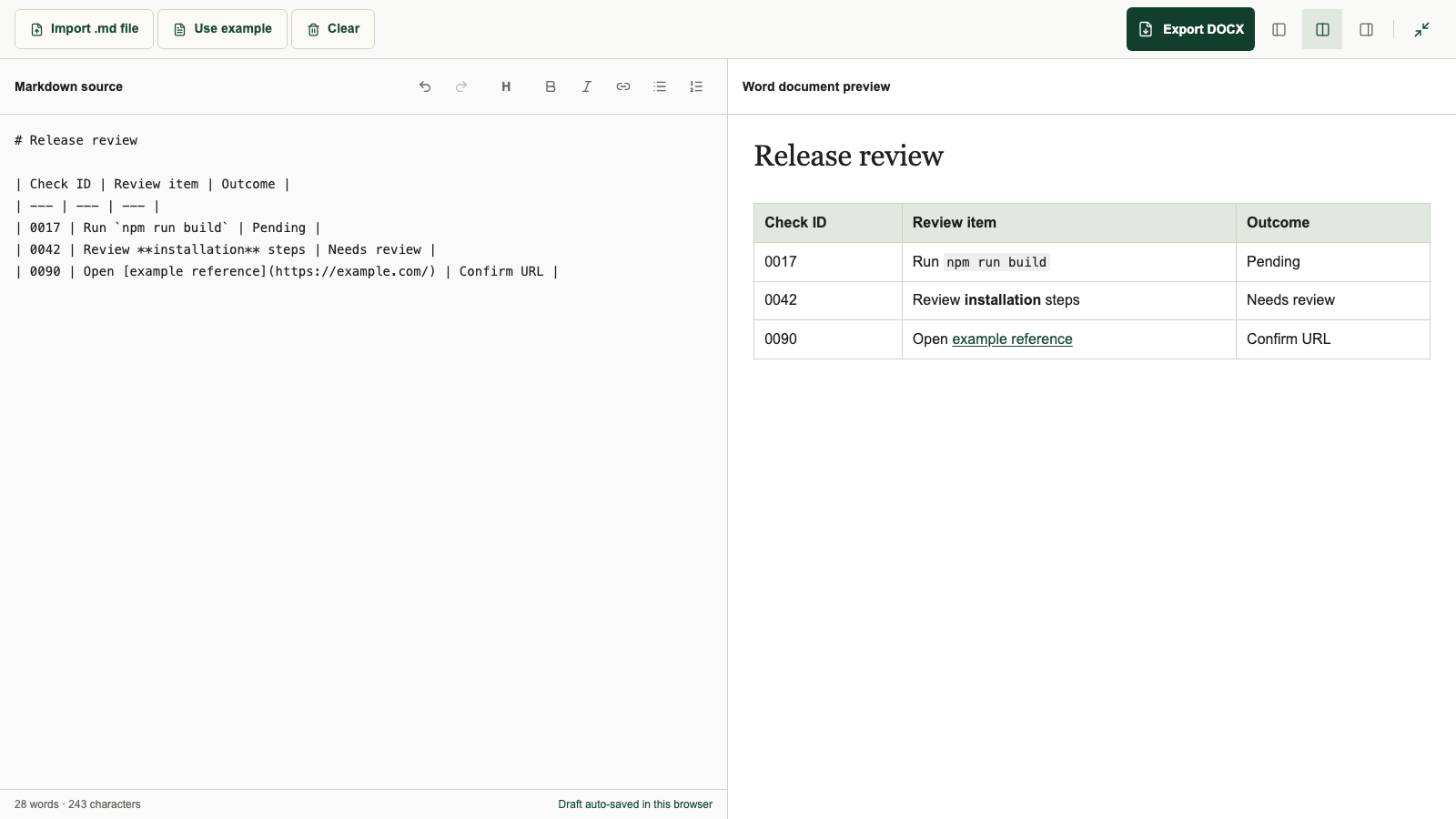
A browser preview helps you find structural problems. Check fonts, wrapping and page boundaries in the application the recipient will use. For broader conversion choices, including Pandoc, see the published Markdown to Word guide.
Check values before changing column widths
Use specific cells to verify the download:
0017,Run npm run buildandPendingbelong in the same row. The command should retain its inline-code styling.0042belongs with the installation review andNeeds review; the word installation should remain bold.0090belongs with the reference andConfirm URL. The link target should still behttps://example.com/.- The identifiers must keep their leading zeros. An empty cell, a zero and an unreviewed value are different things; explain which one you mean.
For a longer table, compare every row, including those beyond the first page. Use a stable identifier rather than relying only on row position. If you split the table later, repeat that identifier in both parts so the rows can still be matched.
Fix source problems that shift or hide cells
Work on malformed source before polishing the Word file. Otherwise, exporting again can reproduce the same error.
| Symptom | What to inspect | First repair |
|---|---|---|
| Pipes appear as ordinary text | Missing delimiter row or a fence around the entire table | Restore the delimiter row; remove only the outer display fence |
| A value moves into the next column | A pipe inside a cell or an inconsistent number of cells | Check the affected row against its headings |
| The table stops partway through | A blank line or a new block inside the table | Keep rows together and move explanations below it |
| A value disappears despite a tidy preview | Extra or missing cells in a source row | Compare the original values, then rebuild that row |
Here is deliberately broken input: it has no delimiter row.
| Check ID | Review item | Outcome |
| 0017 | Run the build | Pending |
Insert | --- | --- | --- | between those lines. Retain three cells in each row. The GFM table specification requires matching header and delimiter counts; it also permits missing body cells to become empty cells and ignores excess body cells. Do not depend on that correction for important data.
A literal pipe needs particular care. In GFM, the first cell below represents A|B:
| Rule | Meaning |
| --- | --- |
| A\|B | Either option |
Test that row through your actual export route. Markdown support can differ between a preview and a DOCX converter. If it still splits, replace the expression in the Markdown cell with a temporary label such as RULE_TEXT, export again, and confirm that the row has two cells. Then replace RULE_TEXT with the exact A|B text inside the first Word cell. For code, you can instead move the expression outside the table without changing its characters.
Give wide tables room in Word
Consider this six-column source. Horizontal scrolling can make it look acceptable on a website while hiding how cramped a portrait document will be:
| Check ID | Component | Environment | Owner | Evidence | Next action |
| --- | --- | --- | --- | --- | --- |
| 0017 | Installer | Desktop | Release team | Build log | Review command output |
| 0042 | Guide | Documentation | Docs team | Review notes | Confirm installation steps |
First reduce the burden on each row: shorten repeated headings, give links descriptive labels and move long explanations into paragraphs. If the reader does not need all six columns together, split them into two smaller tables with the same Check ID.
For a table that must stay wide, open it in Word and select Table Layout → AutoFit → AutoFit Window, where available. Then allocate more width to descriptive text and less to short identifiers. Microsoft's table-resizing instructions distinguish fitting the whole table to the available width from fitting columns to their contents. Inspect the result after either adjustment.
Check alignment separately. Markdown's :---, :---: and ---: markers express left, center and right alignment for supporting renderers; they do not guarantee identical placement in every DOCX route. Apply the required alignment to the Word cells when necessary, especially for amounts and identifiers. Do not add spaces to position values.
MDFormats does not expose DOCX page orientation or per-column width controls in this workspace. If a landscape section is appropriate, set it in Word and review the surrounding pages. For a reading copy, Markdown to PDF has paper and orientation options; check its saved output separately.
Keep long tables understandable across pages
When a table continues onto another page, repeat its column headings so the next set of values remains understandable. In desktop Word, select the header row and use Table Layout → Repeat Header Rows. Microsoft's header-row instructions note that repeated headings are visible in Print Layout or print, and do not repeat at a manual page break inserted within the table.
For awkward row splits, review the row-breaking options under Table Properties → Row, as described in Microsoft's table-properties guide. Keeping a row together may move it to the next page. If one row contains a long explanation, move that text below the table instead of making the whole document smaller to accommodate it. Control names and availability vary between Word versions.
Check the first, middle and last pages after editing. These instructions describe adjustments in Word; they are not settings that MDFormats applies automatically.
Simplify cells that need a more complex document
GFM pipe tables hold inline content. They do not define merged cells or contain full block structures such as nested tables and multi-paragraph lists. If your source uses a merged heading called “Owner”, replace it with explicit names such as “Current owner” and “Next owner” before conversion. Build any necessary merged layout in Word afterward.
Do not assume that adding HTML creates the same layout in DOCX. In this workflow, MDFormats also does not embed referenced images in the Word file. Add required images in Word and check their effect on the table again.
Frequently asked questions
Can I paste a Markdown table directly into Word?
You can paste the text, but do not assume Word will interpret its pipes as table syntax. If you already have a rendered table, try pasting it and check whether its cells remain editable. If you have Markdown source, export DOCX or use another Markdown-aware conversion route.
Why do the columns have different widths from the source?
Spacing around pipes does not set document measurements. Preview width, page margins, fonts and column sizing affect wrapping. Adjust the exported table in Word; changing its width there does not update your Markdown.
Can I merge cells or insert a long list inside a Markdown table?
Those structures are outside GFM pipe-table syntax. Keep a short reference in the cell, put the explanation below the table, or create the more complex structure in Word.
Does a correct-looking preview prove that every value survived?
No. Compare the downloaded file with the source, checking identifiers, row relationships, links and the final rows. A neat layout can still contain a shifted or missing value.
Finish with a table you can edit and verify
When you move Markdown tables to Word, check the content first and the page layout second. Try the sample in Markdown to Word, compare its twelve cells, then handle widths and page behavior in your destination editor. Keeping a separate .md copy for future revisions is optional.